网页扫描二维码库:Html5-Qrcode
文档地址:Hello from ScanApp | ScanApp
下面内容为官方文档内容,这里做一个备注,要使用网页调用摄像头功能,网站的地址一定是https才可以。
Getting started
Let's discover html5-qrcode in less than 5 minutes.
Setup the library
You can get started using npm, if you don't use npm in your project checkout the next section.
Install using npm
npm install --save-dev html5-qrcodeInclude minified Javascript directly
If you are not using any loader, you can get the latest UMD javascript code in production from https://unpkg.com/html5-qrcode .
<script src="https://unpkg.com/html5-qrcode" type="text/javascript">In case you installed the plugin usingnpmbut still use javascript without any module loader, you can get the minified script innode_modules/html5-qrcode/html5-qrcode.min.js
Using with module loaders
If you are building on Typescript or use module loaders in Javascript, you can include the key classes directly based on needs.
// To use Html5QrcodeScanner (more info below)
import {Html5QrcodeScanner} from "html5-qrcode";

// To use Html5Qrcode (more info below)
import {Html5Qrcode} from "html5-qrcode";
Setup a target HTML container
In your web application, implement an HTML container element like <div> element. The library will render the QR scanning UI in this HTML container.
<div id="reader" width="600px"></div>Ideally do not set the height of this container as the height should depend on the height of the video feed from the camera. The library would honor the existing width, otherwise apply the default width. The height is derived from the aspect ratio of the video feed.
Start scanner using Javascript
Easy Mode - With end to end scanner user interface
Html5QrcodeScanner lets you implement an end to end scanner with few lines of code with the default user interface which allows scanning using the camera or selecting an image from the file system.
You can set up the scanner as follows:
function onScanSuccess(decodedText, decodedResult) {
  // handle the scanned code as you like, for example:
  console.log(`Code matched = ${decodedText}`, decodedResult);
}

function onScanFailure(error) {
  // handle scan failure, usually better to ignore and keep scanning.
  // for example:
  console.warn(`Code scan error = ${error}`);
}

let html5QrcodeScanner = new Html5QrcodeScanner(
  "reader",
  { fps: 10, qrbox: {width: 250, height: 250} },
  /* verbose= */ false);
html5QrcodeScanner.render(onScanSuccess, onScanFailure);
Pro Mode - if you want to implement your own user interface
You can use Html5Qrcode class to set up your QR code scanner (with your own user interface) and allow users to scan QR codes using the camera or by choosing an image file in the file system or native cameras in smartphones.
You can use the following APIs to fetch camera, start scanning and stop scanning.
For using inline QR Code scanning with Webcam or Smartphone camera
Start Scanning
To get a list of supported cameras, query it using static method Html5Qrcode.getCameras(). This method returns a Promise with a list of devices supported in format { id: "id", label: "label" }.
// This method will trigger user permissions
Html5Qrcode.getCameras().then(devices => {
  /**
   * devices would be an array of objects of type:
   * { id: "id", label: "label" }
   */
  if (devices && devices.length) {
    var cameraId = devices[0].id;
    // .. use this to start scanning.
  }
}).catch(err => {
  // handle err
});Important: Note that this method will trigger user permission if the user has not granted it already.
Warning: Direct access to the camera is a powerful feature. It requires consent from the user, and your site MUST be on a secure origin (HTTPS).
Warning: Asking for access to the camera on page load will result in most of your users rejecting access to it. More info
Once you have the camera ID from device.id, start camera using Html5Qrcode#start(..). This method returns a Promise with Qr code scanning initiation.
const html5QrCode = new Html5Qrcode(/* element id */ "reader");
html5QrCode.start(
  cameraId,
  {
    fps: 10,    // Optional, frame per seconds for qr code scanning
    qrbox: { width: 250, height: 250 }  // Optional, if you want bounded box UI
  },
  (decodedText, decodedResult) => {
    // do something when code is read
  },
  (errorMessage) => {
    // parse error, ignore it.
  })
.catch((err) => {
  // Start failed, handle it.
});
You can optionally set another argument in constructor called verbose to print all logs to consoleconst html5QrCode = new Html5Qrcode("reader", /* verbose= */ true);Scanning without cameraId
In mobile devices you may want users to directly scan the QR code using the back camera or the front camera for some use cases. For such cases you can avoid using the exact camera device ID that you get from Html5Qrcode.getCameras(). The start() method allows passing constraints in place of camera device ID similar to html5 web API syntax. You can start scanning like mentioned in these examples:
const html5QrCode = new Html5Qrcode("reader");
const qrCodeSuccessCallback = (decodedText, decodedResult) => {
    /* handle success */
};
const config = { fps: 10, qrbox: { width: 250, height: 250 } };

// If you want to prefer front camera
html5QrCode.start({ facingMode: "user" }, config, qrCodeSuccessCallback);

// If you want to prefer back camera
html5QrCode.start({ facingMode: "environment" }, config, qrCodeSuccessCallback);

// Select front camera or fail with `OverconstrainedError`.
html5QrCode.start({ facingMode: { exact: "user"} }, config, qrCodeSuccessCallback);

// Select back camera or fail with `OverconstrainedError`.
html5QrCode.start({ facingMode: { exact: "environment"} }, config, qrCodeSuccessCallback);
Passing the cameraId (recommended approach) is similar to
html5QrCode.start({ deviceId: { exact: cameraId} }, config, qrCodeSuccessCallback);Stop Scanning
To stop using camera and thus stop scanning, call Html5Qrcode#stop() which returns a Promise for stopping the video feed and scanning.
html5QrCode.stop().then((ignore) => {
  // QR Code scanning is stopped.
}).catch((err) => {
  // Stop failed, handle it.
});
Note that the class is stateful andstop()should be called to properly tear down the video and camera objects safely after callingstart()when the scan is over or the user intend to move on.stop()will stop the video feed on the viewfinder.
For QR Code scanning using local files or inbuilt camera on Smartphones
| SelectorinAndroid | SelectorinIOS |
|---|---|
Taken on Pixel 3, Google Chrome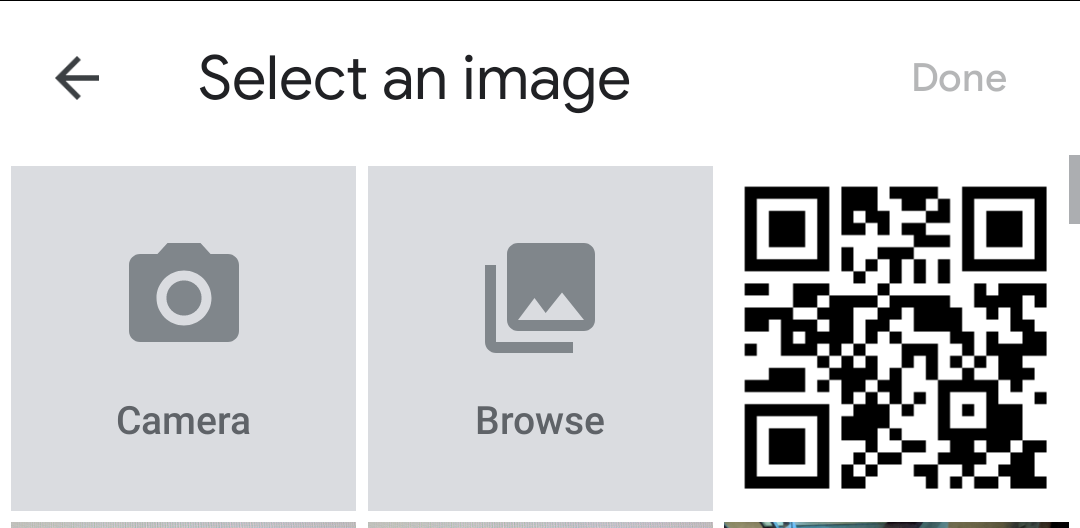 | Taken on iPhone 7, Google Chrome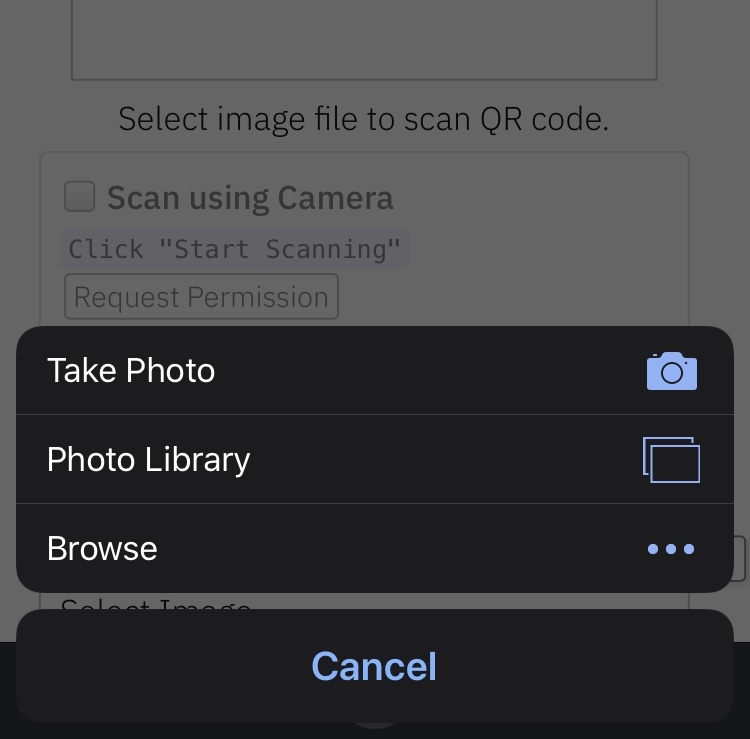 |
You can alternatively leverage QR Code scanning for local files on the device or default camera on the device. It works similar to inline QR Code scanning.
Define the HTML container and import the JavaScript library as mentioned above
<div id="reader" width="600px" height="600px"></div>
<script src="./dist/html5-qrcode.js"></script>
It's not mandatory to set the height and width of the HTML element. If provided, the library would try to honor it. If it's not set, the library would set a default width and derive the height based on the input image's aspect ratio.
Add an Input element for supporting file selection like this:
<input type="file" id="qr-input-file" accept="image/*">
<!--
  Or add captured if you only want to enable smartphone camera, PC browsers will ignore it.
-->

<input type="file" id="qr-input-file" accept="image/*" capture>
Find more information about this at developers.google.com.
And in JavaScript code initialize the object and attach listener like this:
const html5QrCode = new Html5Qrcode(/* element id */ "reader");
// File based scanning
const fileinput = document.getElementById('qr-input-file');
fileinput.addEventListener('change', e => {
  if (e.target.files.length == 0) {
    // No file selected, ignore
    return;
  }

  const imageFile = e.target.files[0];
  // Scan QR Code
  html5QrCode.scanFile(imageFile, true)
  .then(decodedText => {
    // success, use decodedText
    console.log(decodedText);
  })
  .catch(err => {
    // failure, handle it.
    console.log(`Error scanning file. Reason: ${err}`)
  });
});

// Note: Current public API `scanFile` only returns the decoded text. There is
// another work in progress API (in beta) which returns a full decoded result of
// type `QrcodeResult` (check interface in src/core.ts) which contains the
// decoded text, code format, code bounds, etc.
// Eventually, this beta API will be migrated to the public API.
Note that inline scanning and file-based scanning are mutually exclusive at the moment. This means you can only use one of them at a time. I'll soon be adding support for the option to have both if the requirement comes in. If you want to use both, use html5QrCode#clear() method to clear the canvas.热门标签
每日一句
-
成功者与失败者之间的区别,常在于成功者能由错误中获益,并以不同的方式再尝试。
——卡耐基
今日排行
- Electron页面跳转、浏览器打开链接和打开新窗口
 Electron页面跳转、浏览器打开链接和打开新窗口
 - 网页扫描二维码库:Html5-Qrcode
 网页扫描二维码库:Html5-Qrcode,官网地址:https://scanapp.org/html5-qrcode-docs/
 - Python调用WPS把文档转换PDF,并把PDF转图片
 Python调用WPS把文档转换PDF,并把PDF转图片,首先需要安装WPS,然后利用pypiwin32把文档转化成PDF,再利用fitz、PyMuPD把PDF转化成图片
 - 堆(Heap)
 堆(Heap)是计算机科学中一类特殊的数据结构的统称。堆通常是一个可以被看做一棵完全二叉树的数组对象。
 - PHP的array_walk_recursive函数
 php中的array_walk_recursive函数对数组中的每个成员递归地应用用户函数
点击排行
- VSCode插件 - 快速生成表格并格式化
 快速生成表格
 - Electron页面跳转、浏览器打开链接和打开新窗口
Electron页面跳转、浏览器打开链接和打开新窗口
- Electron打包错误“Error: Application entry file ..”解决方案
打包出现如下错误:Error: Application entry file "dist\electron\main.js" in the "D:\gui\demo2\build\win-unpacked\resources\app.asar" does not exist. Seems like a wrong configuration.
- mac git用户名和密码修改
 在Mac电脑中,如何对Git的用户名和密码进行修改呢?起初不懂Mac,所以整了很久,本文将记录如何对这个进行操作,以便后期使用。
 - Git保存和清除用户名、密码
 在使用Git的过程中,不想每次都输入用户名和密码去拉取代码,所以就需要保存这些信息,那么既然有保存了,就必须有清除功能。
 - Docker编译出现:temporary error (try again later)
 Docker编译镜像出现:fetch http://dl-cdn.alpinelinux.org/alpine/v3.12/main/x86_64/APKINDEX.tar.gz
ERROR: http://dl-cdn.alpinelinux.org/alpine/v3.12/main: temporary error (try again later)
WARNING: Ignoring APKINDEX.2c4ac24e.tar.gz: No such file or directory问题
Docker编译镜像出现:fetch http://dl-cdn.alpinelinux.org/alpine/v3.12/main/x86_64/APKINDEX.tar.gz
ERROR: http://dl-cdn.alpinelinux.org/alpine/v3.12/main: temporary error (try again later)
WARNING: Ignoring APKINDEX.2c4ac24e.tar.gz: No such file or directory问题